C3. IMPORT A FORCE FIELD
In this tutorial, we will practice how to integrate an external force field into TEAMFF as a new force field table, which is another way to extend the coverage of TEAMFF. External force fields can be taken from literature or from other developers. As long as the force field type is consistent, the imported force field can be used with other force fields in TEAMFF.
Two text file must be prepared in order to import a force field: a “.ppf” file containing the parameters and a “.def” file of the typing rule. DFF has tools to prepare the “.def” and “.ppf” interactively.
To illustrate how this works, let's use the molecule (“diethanolamine.msd”) used in previous lesson. We assume a force field is in AMBER type, and the atom types used in this force field are:
C1 - for carbon
O1 - for oxygen
N1 - for nitrogen
HO - hydrogen bonded to oxygen
HN - hydrogen bonded to nitrogen
HC - hydrogen bonded to carbon
Because the force field is independently stored and used, the atom types can be defined as simple as possible. As shown above, only hydrogen atoms need to be differentiated, for other atoms – carbon, oxygen and nitrogen, the atom types can be as general as the element symbols.
In the following steps, we will first see how to prepare the definition file using DFF.
DEFINING TYPING RULES
-
Using Force Field → Define Typing Rules command to open “Atom Type Definition” dialog. Click New/Select button to create a new typing file entitled "MyFF.def". Note that all typing rules must be saved in /data/TypingScripts/ folder. A definition file, “Tutorial.def”, which is the result of this tutorial, has been saved in the directory for comparison. Since the typing rule is essential data, all typing rules are saved in a special folder under the DFF installation directory /data/TypingScripts/. You need to have the access right to this folder in order to save and use the typing rules you created.
-
Select the root node ("DefinitionTree") in the left panel of this dialog and select C as "Element" in the right panel. Since we will only handle one carbon atom type, there is no need to specify any additional attributes to distinguish a given carbon atom in the molecule. Enter "C" in the editable field as seen below and click Add. A new atom type "C1" is added into the DefinitionTree on the left side. Any symbol can be used for representing atom types. It is a good practice and useful for parameterization to name the atom types in a consistent and self-explanatory way so that the atom types can be easily recognized.
-
Repeat the above steps for adding the atom types for oxygen and nitrogen. Note that each of these atom types is distinct with no inheritance relationship (i.e., not subtypes of one another), so each type should be added to the base node ("Definition Tree".) The result should look like this:
-
Let's make the hydrogen atom types now. There are three different hydrogen atoms in the molecule depending on whether the hydrogen is bonded to oxygen, nitrogen, or carbon. We will need to differentiate them. First, let's define hydrogen bonded to oxygen. Click on the "DefinitionTree" node and select element H in the right panel. Set Connect as 1 (to indicate one bond). In the editable field, click on the new node under H marked "?". The top section above this field will now refresh. Select element O to indicate the hydrogen is bonded to oxygen. Then enter "HO" as the atom type name.
-
Repeat the process for the other two hydrogen atom types. When all done, it should like this:
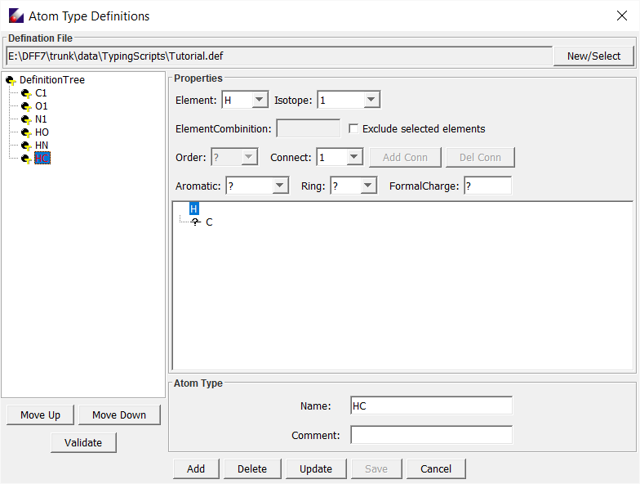
-
Click Save to save the definition file, which looks like this:
!!!!!!!!!!!!!!!!!!!!!!!!!!!!!!!!!!!!!!!!!!!!!!!!!!!!!!!!!!! User atom types definition for DFF (Wed Jan 31 17:10:35 CST 2018) !!!!!!!!!!!!!!!!!!!!!!!!!!!!!!!!!!!!!!!!!!!!!!!!!!!!!!!!!!!!!!!!!!!!!!!!!!!!!!!!!!!!!!!!!!!!!!!!! Define C1 C atom 1: coor=? End Define O1 O atom 1: coor=? End Define N1 N atom 1: coor=? End Define HO H [&O] atom 1: coor=1 atom 2: coor=? End Define HN H [&N] atom 1: coor=1 atom 2: coor=? End Define HC H [&C] atom 1: coor=1 atom 2: coor=? End RelationTree: (C1 ) (O1 ) (N1 ) (HO ) (HN ) (HC ) End -
Test the new typing rule. Select diethanolamine.msd, click Force Field → Assign Atom Types, and click Choose to select a typing rule. Browse and find the definition file you created, and click Execute to get the atom types assigned. Click Execute to assign atom types. Atom types should now be correctly assigned to the molecule.
PREPARINGE A PPF FILE
-
We will now prepare a PPF file. The PPF format is explained in Chapter 6. In this case, the file should read as follows:
#DFF:PPF
#PROTOCOL = AMBER
#TYPINGRULE = MyFF.def
ATYPE: C1 : 6.00000,12.01100 : C D
ATYPE: HC : 1.00000, 1.00790 : C D
ATYPE: HN : 1.00000, 1.00790 : C D
ATYPE: HO : 1.00000, 1.00790 : C D
ATYPE: N1 : 7.00000,14.00670 : C D
ATYPE: O1 : 8.00000,15.99940 : C D
BINC: C1 , C1 : 0.00000 : C D
BINC: C1 , HC : 0.00150 : C D
BINC: C1 , N1 : 0.18840 : C D
BINC: C1 , O1 : 0.19890 : C D
BINC: HN , N1 : 0.34380 : C D
BINC: HO , O1 : 0.41360 : C D
N12_6: C1 :    3.93000,   0.06600 : C D
N12_6: HC :    2.72000,   0.03000 : C D
N12_6: HN :    2.72000,   0.03000 : C D
N12_6: HO :    2.72000,   0.03000 : C D
N12_6: N1 :    3.69300,   0.14500 : C D
N12_6: O1 :    3.37000,   0.17000 : C D
BHARM: C1, C1 : 1.50740, 257.60920 : C D
BHARM: C1, HC : 1.10030, 337.96220 : C D
BHARM: C1, N1 : 1.45050, 269.52610 : C D
BHARM: C1, O1 : 1.40890, 260.18510 : C D
BHARM: HN, N1 : 1.01940, 494.86480 : C D
BHARM: HO, O1 : 0.97090, 576.31990 : C D
AHARM: C1, C1, HC : 114.51930,   35.72660 : C D
AHARM: C1, C1, N1 : 112.94380,   55.26240 : C D
AHARM: C1, C1, O1 : 110.63270,   65.44320 : C D
AHARM: C1, N1, C1 : 111.58130,   93.59760 : C D
AHARM: C1, N1, HN : 107.62090,   48.64750 : C D
AHARM: C1, O1, HO : 105.31840,   56.30250 : C D
AHARM: HC, C1, HC : 113.08930,   37.03450 : C D
AHARM: HC, C1, N1 : 116.67120,   35.28640 : C D
AHARM: HC, C1, O1 : 113.03220,   57.01090 : C D
TCOSP: C1, C1, N1, C1 :   0.0,  0.40790, 3.0, 0.0, -2.92360, 1. 0, 180.0,  0.78360, 2.0 : C D
TCOSP: C1, C1, N1, HN :   0.0, -0.11820, 3.0, 0.0, -0.82030, 1. 0, 180.0, -0.71270, 2.0 : C D
TCOSP: C1, C1, O1, HO :   0.0,  0.15760, 3.0, 0.0, -1.08540, 1. 0, 180.0, -0.51830, 2.0 : C D
TCOSP: C1, N1, C1, HC :   0.0,  0.39130, 3.0, 0.0, -0.74250, 1. 0, 180.0, -0.15020, 2.0 : C D
TCOSP: HC, C1, C1, HC :   0.0,  0.10950, 3.0, 0.0,  9.90490, 1. 0, 180.0, -0.98030, 2.0 : C D
TCOSP: HC, C1, C1, N1 :   0.0,  0.04500, 3.0, 0.0, 10.64810, 1. 0, 180.0, -0.65010, 2.0 : C D
TCOSP: HC, C1, C1, O1 :   0.0, -0.18490, 3.0, 0.0,  9.79680, 1. 0, 180.0, -1.54950, 2.0 : C D
TCOSP: HC, C1, N1, HN :   0.0,  0.31100, 3.0, 0.0,  0.07450, 1. 0, 180.0, -0.58790, 2.0 : C D
TCOSP: HC, C1, O1, HO :   0.0,  0.35220, 3.0, 0.0,  0.87650, 1. 0, 180.0, -0.82550, 2.0 : C D
TCOSP: N1, C1, C1, O1 :   0.0,  1.24760, 3.0, 0.0,  9.61000, 1. 0, 180.0, -1.01000, 2.0 : C D
IBCOS: C1, C1, N1, HN : 180.0,  0.00000, 2.0 : C D
The 2nd and 3rd lines indicate the force field type and typing rules. The rest are parameters from different sections. Note that there is no equivalence table for this force field, which means the apparent atom types are the same as the atom types used in identifying parameters, which is acceptable. Double-click to open the diethanolamine.ppf file:
-
Assign this force field to diethanolamine.msd to test if atom types are assigned correctly and parameters are complete. This can be done by selecting the model, right-clicking, selecting Associate, and selecting the appropriate force field:
-
Run simulations using Simulation → Optimization or Simulation → Molecular Dynamics to verify that these parameters work properly.
-
You may create a new force field table using the AMBER format and check in parameters as explained in previous lesson. This force field can be used with other AMBER type force fields in TEAMFF.